

[SOLVED] Body Konfiguration wird nicht übernommen

<div class="column" style="text-align: left;color: #8e959c;font-size: 14px;line-height: 21px;font-family: sans-serif;max-width: 600px;min-width: 320px; width: 320px;width: calc(28000% - 167400px);">
Ich habe dies im Template bereits eingestellt, jedoch übernimmt der neue Newsletter nicht meine Schriftgröße und Farbe sondern behält die Voreinstellungen.
Das habe ich gemacht:
<div class="column" style="text-align: left; color: #333333; font-size: 16px; line-height: 21px; font-family: sans-serif; max-width: 600px; min-width: 320px; width: calc(28000% - 167400px);">
Die Schriftfarbe soll #333333 und die Schriftgöße 16px sein.
Ich habe es immer wieder probiert, aber es wird nicht übernommen. Wo habe ich was vergessen? Kann mir jemand helfen?
Vielen Dank, Silke
Please Log in or Create an account to join the conversation.

dafür bin wohl ich der Ansprechpartner.
Vermutlich handelt es sich um ein Standardtemplate, da ist eine individuelle Anpassung nicht so einfach.
Leider kann ich auch den von dir geposteten Quelltext bei mir nicht finden.
Welches Template benutzt du denn?
Wo machst du die beschriebenen Änderungen?
Was soll genau geändert werden bzw. was willst du erreichen?
Am einfachsten für mich wäre es, wenn du dein Template exportierst und hier anhängst.
Persönliche Daten, wie Logo und Intro usw. kannst du ja ändern.
Gruß Karl
Please Log in or Create an account to join the conversation.
Ich habe das "Sample / Beispiel HTML-Template 2018" template kopiert und für mich optimiert.
Ich bin mit allem zufrieden, nur wenn man einen neuen Newsletter erstellt, ist immer noch die Standard Schriftgröße 14px und in der Farbe grau als Vorgabe "Hier können Sie Ihren Text eintragen). Die Schriftgröße soll 16px sein, die Farbe #333333.
Ich dachte, dass ein neu erstellter Newsletter auf das Standard-Template (mein Template ist als standard markiert) zurück greift.
Können dir diese Angaben weiterhelfen?
Herzliche Grüße, Silke
Please Log in or Create an account to join the conversation.
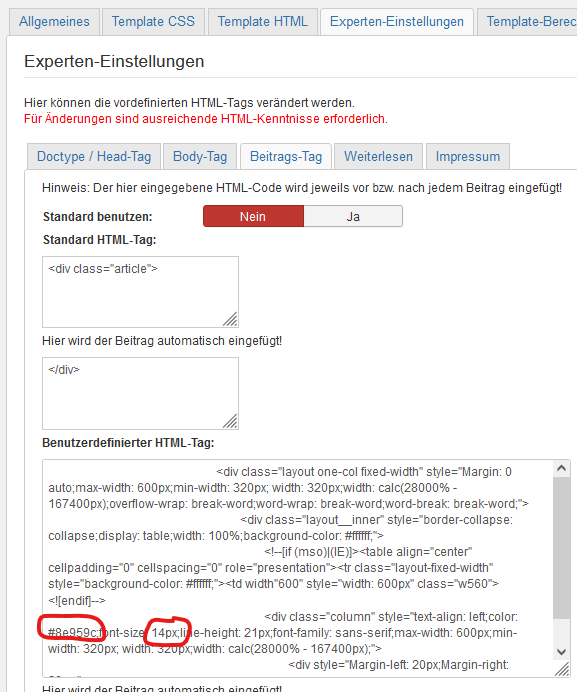
geh in den Tab "Experten-Einstellungen" und dort "Beitrags-Tag".
Im Eingabefeld "Benutzerdefinierter HTML-Tag" findest du den entscheidenden Html-Code.
Gruß Karl
Please Log in or Create an account to join the conversation.
Please Log in or Create an account to join the conversation.
Please Log in or Create an account to join the conversation.
Register to newsletter
() Mandatory fields
Information
×Voluntary salary
- Recommend Boldt Webservice.
- If you want to support my work with a donation, please click on the following button - the donation will be handled via paypal.
With your voluntary salary you also support the development of free software and extensions for the CMS Joomla.
Enter your amount below and click on the following button:
Register to newsletter
() Mandatory fields
Information
×Voluntary salary
- Recommend Boldt Webservice.
- If you want to support my work with a donation, please click on the following button - the donation will be handled via paypal.
With your voluntary salary you also support the development of free software and extensions for the CMS Joomla.
Enter your amount below and click on the following button:
NOTE! This site uses cookies and similar technologies.
If you not change browser settings, you agree to it. Learn more